Want to quickly master Google Maps for EV Charging skills and completely solve range anxiety? Please follow these expert-level steps: First, open the Google Maps search bar and type “EV charging stations”; Second, use the Filter function to precisely lock in your Plug Type (e.g., CCS2 or Tesla) and Preferred Payment Network; Finally, focus on studying the Real-time Availability, Charging Speed, and User Photos in the station details. As experts deeply rooted in charging station manufacturing, we recommend prioritizing stations that show “Live/Available” and have a rating above 4.0. This usually implies the station uses more stable Smart Connectivity hardware and the OCPP Protocol.
For Electric Vehicle (EV) drivers, “finding a charging station” isn’t just about locating a pin on a map. In a network with millions of stations, the real challenge is finding one that is functional, compatible, fast, and available.
As EVs become more popular, Google Maps has evolved into the most powerful EV Trip Planner. It does more than just give directions; it uses algorithms to predict your energy consumption.
As experts in charging infrastructure manufacturing, we will take you deep into the logic behind the data. This will help you avoid faulty chargers and get the best refueling experience through Google Maps for EV Charging.
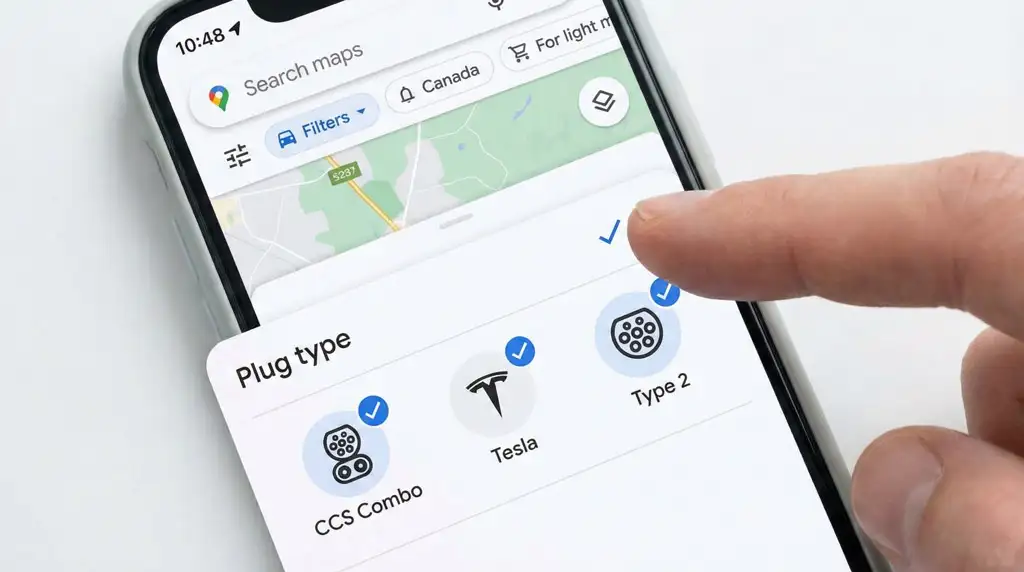
Before you hit the road for the first time, spending 2 minutes setting up Google Maps is crucial. It’s like telling the map: “What car do I drive, and what ‘fuel’ can I eat?”
There is nothing more frustrating than arriving at a station only to find the connector doesn’t fit.
Path: Tap your profile icon > Settings > Electric vehicle settings.
Add Plugs (Your Plugs):
CCS (Combo 1/2): The mainstream standard for most new non-Tesla models globally.
Tesla (NACS): For Tesla models and some open Superchargers.
Type 2 (Mennekes): European AC slow charging standard.
CHAdeMO: Used by Nissan Leaf and older Japanese models.
J1772: North American AC slow charging standard.
Result: Once set, the map will automatically filter out all physically incompatible stations, saving you massive amounts of invalid screening time.
Do you have a membership card for a specific operator? Or do you hate downloading new apps?
In the filter options, you can check specific charging networks (e.g., ChargePoint, EVgo, Electrify America, Ionity, etc.).
Expert Advice: Prioritize networks that partner with your car manufacturer (Plug & Charge) or those where you already have a credit card linked.
Beyond basic typing, Google Maps offers several convenient interaction methods, especially while driving.
Type the following core keywords in the search bar for the broadest results:
“EV charging stations”
“Fast charging stations nearby”
“Electric car chargers”
If you aren’t in a rush to charge and just want to browse surrounding infrastructure, or if you don’t know the specific keywords, this is a hidden shortcut:
Tap the pill-shaped button list below the search bar (usually labeled “Restaurants”, “Gas”, etc.).
Scroll right and tap “More” or the “…” icon.
Under the “Services” category, find and tap the “Electric Vehicle Charging” icon.
This will display all types of charging facilities centered on your current map view, including slow chargers hidden in hotels or restaurants.
Safety comes first. You can speak directly to your phone:
“Hey Google, find EV charging stations along my route.”
“Hey Google, navigate to the nearest fast charger.”
Finding a station is just step one; filtering for high-quality stations is a core skill for pro drivers.
The kW value marked on the map directly determines your wait time. But please note, marked power does not equal actual power.
| Charger Type | Power (kW) | Estimated Time (10-80%) | Ideal Use Case |
|---|---|---|---|
| Level 2 (AC) | 7 - 22 kW | 4 - 8 Hours | Home / Workplace |
| DC Fast (Level 3) | 50 - 150 kW | 30 - 60 Mins | Grocery / Mall Stops |
| High-Power (HPC) | 150 - 350 kW+ | 15 - 25 Mins | Highway Long Travel |
Expert Tip: In the Google Maps filter, selecting “Fast” (50kW+) or “Very Fast” (150kW+) allows you to filter out all slow chargers that require an overnight stay, which is critical for en-route refueling.

Google Maps displays port status via cloud connection, but data has latency.
Available (Green): Ideal status. But if only 1 is available, be mentally prepared it might be taken.
In Use (Grey): The charger is working but occupied. Check if the station has a “Wait Time” estimate.
Offline / Unknown: Red Alert! This usually means the charger’s Communication Module is faulty. As manufacturers, we know that if the heartbeat signal is lost, the backend marks it offline. These chargers are likely broken or “dumb terminals” (cannot be started via phone).
Not all stations shown on the map are worth visiting. Some are in private garages, and some are in disrepair.
Many apartment or company chargers appear on the map.
Check Name: If the name is “Apartment Complex” or “Employee Parking”, and the description lacks “Public Access”, call ahead to confirm.
Check “Access” Tag: Google Maps usually labels them “Private” or “Restricted access”.
In station details, look at the text next to port status:
“Updated 1 min ago”: Excellent. Indicates the operator uses high-quality OCPP smart protocols with real-time data sync.
“Updated 2 days ago”: High Risk. Data may be stale; the “Available” status you see might be false.
Click Reviews and sort by Newest:
Search keyword “ICEd”: Means an Internal Combustion Engine vehicle is blocking the spot.
Search keyword “Slow” or “Cap”: Some 150kW chargers might be capped at 50kW due to grid limits; reviews often hold the truth.
Search keyword “Screen broken”: Screen is damaged, cannot scan QR code.

For trips over 200km, Google Maps’ EV Route Planning feature is your best co-pilot.
Set Destination: Enter your endpoint.
Auto-Add Charging: If battery is insufficient, the map automatically plans charging stops along the route.
Battery Preconditioning:
Principle: Lithium batteries charge fastest at 25°C-35°C. In winter, cold batteries charge like a turtle.
Tip: If your car (e.g., Tesla, Polestar, Volvo) integrates Google Automotive OS, you must set the charger as the navigation destination, not just drive there. The vehicle will automatically start the heater to ensure the battery is at optimal temp upon arrival, saving you 10-20 minutes of charging time.
40 minutes of charging shouldn’t be boring.
Zoom in on the map around the station.
Find Amenities: Good stations are located in commercial areas. Use “Search along route” to find stations next to Coffee, Restrooms, or Shopping.
Safety: If charging at night, check Street View. Avoid stations in remote corners or unlit industrial parks. Our Linkpowercharging station design standards mandate high-lumen LED lighting and surveillance cameras, providing a better user experience.
Even with preparation, accidents happen.
Check Live View/Street View: Many chargers are hidden behind pillars or in corners.
Look for Green Paint: Floors often have green markings.
Floor Guide: Read the text description in the App carefully, e.g., “P2, Pillar C4”.
Signal Issues: Underground garages have poor signal, preventing App connection. Having an RFID Card or Plug & Charge support is critical here.
Emergency Stop: Check if the previous user pressed the red emergency stop button; try rotating it to reset.
Contact Support: There is usually a 24-hour support number on the charger body.
While Google Maps is comprehensive, sometimes you need specialized tools:
PlugShare: For detailed community reviews and private shared chargers (especially in remote areas).
A Better Routeplanner (ABRP): For extremely complex long-distance multi-stop planning, its battery modeling is finer than Google Maps.
Q1: Why is my actual charging speed much slower than what Google Maps shows?
A:This is usually due to three reasons:
Battery too cold: Without preconditioning, the BMS limits power to protect the battery.
SoC too high: Once the battery passes 80%, charging speed drops off a cliff (trickle charging).
Power Splitting: If a car is charging next to you, many stations split power, turning a 120kW charger into two 60kW ones.
Q2: Can Google Maps show charging prices?
A:It can show approximate rates, but not always in real-time. For exact pricing, check the charger screen or the operator’s official App. Note that some stations charge “Parking Fees” or “Idle Fees” in addition to electricity.
Q3: Can I add multiple plug types?
A:Yes. If your household has two different EVs, you can check multiple plugs in settings. However, when searching, the map will show stations compatible with any of them, so verify which specific connector a station supports before navigating.
Q4: How do I report incorrect charging station info to Google Maps?
A:Tap station details > “Edit” > “Change name or other details”. You can correct location, plug types, or mark it as permanently closed. Your contribution helps millions of drivers.
Q5: What is “Plug & Charge”? Can Google Maps filter for it?
A:Plug & Charge means you plug in, and charging/payment happens automatically without a phone or card. Currently, Google Maps doesn’t filter for this directly, but you can filter for networks that support it (like Electrify America) to achieve a similar result.

By mastering Google Maps for EV Charging’s advanced search techniques, filtering logic, and route planning, you can turn an uncertain charging process into a controlled, efficient journey.
To EV Drivers: We hope this guide keeps you fully charged on every trip. Remember: Filtering plugs, checking power, and verifying real-time status are the three magic keys to saying goodbye to anxiety.
To Operators: Having seen driver pain points, do you realize the importance of hardware quality? What drivers care about most on the map is accurate online status, blazing fast speeds, and seamless payment. This is exactly the core standard Linkpowercharging adheres to when manufacturing chargers. Want your station to get more 5-star reviews and high usage on Google Maps? Contact us to upgrade your charging infrastructure and make your station a “Star Landmark” on the map.
Authoritative Sources
Google Maps Help Center: Find and use EV charging stations
US Department of Energy (DOE): Electric Vehicle Charging Infrastructure Trends
Open Charge Alliance: Understanding OCPP and Real-time Data Protocols
We will send detailed technical info and quotation to you!